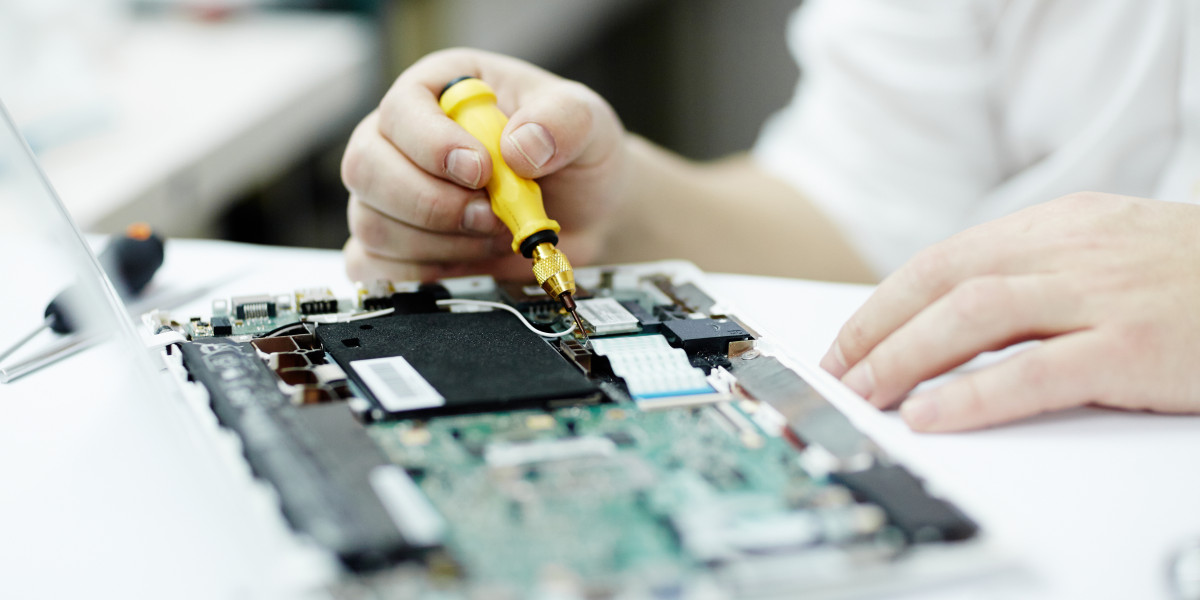

If you use a Microsoft Surface for work, study, or daily use, you already know how powerful and convenient these devices are. But I’ve been repairing Surface devices for years now, and trust me — they are also one of the most problematic laptops/tablets when it comes to long-term use.
People walk into my shop almost daily with their Surface not turning on, touchscreen not responding, or battery draining too fast. So in this article, I’ll explain the most common Microsoft Surface problems and how they can be fixed — from both a technician’s and a user’s point of view.
This is especially useful if you’re searching for Microsoft Surface repair Papakura Auckland and want to understand what’s actually going wrong with your device before bringing it in.
1. Microsoft Surface Not Turning On
This is one of the most common problems I see in the workshop.
What customers usually say:
“My Surface just died suddenly.”
“It was working fine yesterday, today it won’t even light up.”
“No charging light, no logo.”
Possible reasons:
Dead battery
Faulty power circuit
Damaged charging port
Internal board problem
What you can try:
Hold the power button for 20–30 seconds and see if the logo appears.
Try another charger if you have access to one.
Plug it in for at least 30 minutes and check if the charging LED comes on.
When it usually needs repair:
If there is no power response at all, it often means:
The battery is fully dead or swollen
The power IC on the board is damaged
The DC charging port is faulty
These usually require professional Microsoft Surface repair because the device is sealed and not easy to open without special tools.
2. Touchscreen Not Working or Freezing
Surface screens are beautiful, but they are also fragile and sensitive.
Common touchscreen problems:
Touch stops responding
Only part of the screen works
Ghost touches (random touches without touching)
Very slow response
Why this happens:
From my experience, it’s usually due to:
Touch digitizer damage
Screen connector issue
Software or driver corruption
Physical damage or drop
What you can try first:
Restart the Surface
Clean the screen properly (dust and moisture can affect touch)
Check if touch works in BIOS/UEFI mode
Reality from repair shop:
If the screen was dropped or cracked even slightly, most of the time the digitizer layer is damaged. In that case, you’ll need a full Surface screen replacement, because Surface displays are fused together (LCD + touch + glass).
At our shop in Papakura, most customers come in for this issue.
3. Battery Draining Too Fast
This is a very common complaint.
Customers often say:
“My Surface battery barely lasts 1–2 hours.”
“It switches off at 40 or 50 percent.”
Causes:
Battery health degraded over time
Power-hungry background apps
Windows updates running constantly
Faulty battery cells
What you can check:
Reduce screen brightness
Close background apps
Check power settings
See if the battery percentage drops fast during idle
What happens in real cases:
Most Surface batteries start degrading heavily after 2–3 years. Since the battery is sealed inside, users can’t replace it themselves.
A professional Microsoft Surface battery replacement in Papakura Auckland becomes necessary when:
Battery drains too fast
Surface shuts down randomly
Battery swelling occurs
4. Microsoft Surface Overheating
Surface devices are slim, and because of that, heat control is not perfect.
Common signs:
Surface becomes very hot
Fan noise becomes loud
Device slows down
Shuts down randomly
Why it happens:
Dust buildup inside
Thermal paste drying out
Running heavy software
Faulty temperature sensors
What you can do:
Use the device on a hard surface
Avoid using it on a bed or pillow
Close heavy background apps
Keep the system updated
From a technician’s experience:
If overheating continues, it usually means:
Internal cleaning required
Thermal paste replacement
Fan or cooling system repair
In severe cases, overheating damages the motherboard — which becomes a much bigger issue.
5. Surface Gets Stuck on Logo or Boot Loop
I see this issue a lot, especially after Windows updates.
Symptoms:
Surface stuck on Microsoft logo
Constant restarting
Automatic repair loop
Reasons:
Corrupted Windows files
Failed update
SSD issues
Motherboard malfunction
What you can try:
Restart using Power + Volume Up
Try system repair or reset
Boot into recovery mode
When repair is required:
If the issue doesn’t go away, sometimes it’s not just software. It could be:
SSD failure
Faulty RAM chip
Logic board problem
This is quite common in older Surface Pro models.
6. Microsoft Surface Keyboard Not Working
The Type Cover problem is very common.
What happens:
Keyboard not responding
Trackpad stops working
Keyboard disconnects randomly
Why:
Dirty or damaged connectors
Faulty Type Cover cable
Liquid spill
Internal port damage
What you can try:
Clean the connection pins
Reattach properly
Try the keyboard on another Surface
Technician advice:
If it still doesn’t work, the problem is usually in the Type Cover itself or the keyboard port on the Surface.
In many cases, replacing the keyboard solves it. In some rare cases, the internal connector needs repair.
7. Microsoft Surface Screen Flickering or Black Display
Another common one.
Symptoms:
Screen flickers
Goes black randomly
Backlight issue
Causes:
Faulty display panel
Loose internal connector
GPU issue
Backlight failure
What you can try:
Connect it to an external display
Adjust refresh rate
Update drivers
When to visit a repair shop:
If the problem is hardware related, screen replacement is usually the solution.
This has become one of the top reasons people search for Microsoft Surface repair Papakura Auckland.
8. Software Freezing and Slow Performance
People think their Surface is “old” but often it’s just overloaded.
Reasons:
Too many programs running
Storage full
Malware or corrupt software
Old Windows installation
What helps:
Free up storage
Remove unnecessary software
Update Windows
Do a system reset if needed
If the internal SSD is failing, that also causes freezing and slowness.
When You Should Visit a Repair Technician
You should consider professional help if:
The Surface won’t turn on despite charging
The screen is cracked or touch is not working
Battery drains rapidly or swells
It’s overheating badly
It keeps restarting or freezing despite resets
Trying to open a Microsoft Surface yourself without experience can damage it further. These devices are tightly sealed and not meant for DIY repairs.
Final Thoughts from a Surface Repair Specialist
Microsoft Surface devices are powerful but delicate.
Most issues start small — battery draining, screen flickering, slow performance — and then become big problems if ignored.
If you’re in Auckland and dealing with these problems, looking for Microsoft Surface repair in Auckland , then please consider visiting Erepair N Spares . Getting the issue diagnosed early saves you both time and money.
Ubicación del Autor
Unit 2, 182 Great South Road, Papakura-2110.