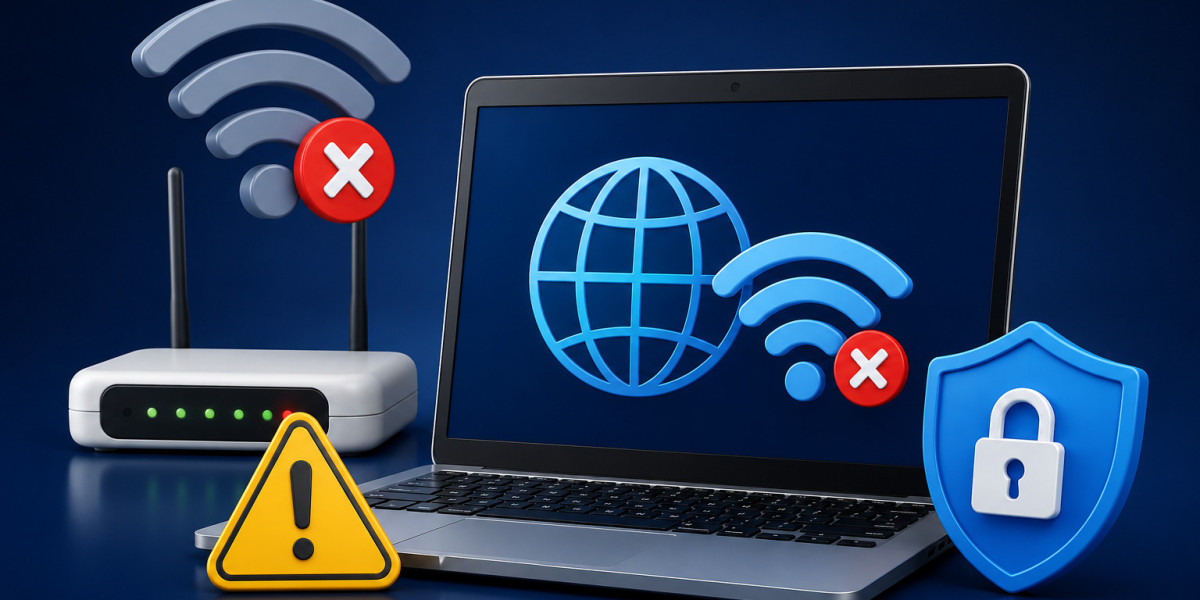

Seeing a connected WiFi network with no working internet can be frustrating, especially when you need to work, study, stream, or make online calls. The network may look secure and connected, but the internet still fails. The No Internet Secured Error usually appears when your device is linked to WiFi but cannot reach the internet through the router.
This problem is common because a WiFi connection and an internet connection are not the same thing. WiFi only connects your device to the router. The router still needs a working line from the internet provider. If any part of this chain fails, the connection becomes limited.
The Difference Between WiFi and Internet
Many users assume that if WiFi is connected, the internet should automatically work. In reality, WiFi is only the wireless path between your device and router. Your router then connects to the internet through fiber, cable, 4G/5G, or another service line.
This means your WiFi name can appear normally even if the provider line is down. It can also appear connected when the router is frozen, the DNS service is failing, or your device has the wrong IP address.
Understanding this difference makes troubleshooting easier. You do not need to replace your device immediately. You need to find which part of the connection path is not working.
Common Reasons Behind the Problem
One common reason is a router glitch. Routers work continuously day and night. After long use, they can slow down, freeze, or stop assigning correct network details. A restart often fixes this.
Another reason is an IP address conflict. Every connected device needs its own address on the network. If two devices conflict, one may fail to access the internet. This can happen after power outages, router resets, or many devices joining the same network.
DNS problems are also common. DNS helps load websites. If DNS fails, apps may behave differently. Some services may work while browsers fail, or websites may load very slowly.
Weak signal can also cause this issue. If your device is far from the router, connected through thick walls, or using a weak extender, the connection may appear active but not perform properly.
What to Check First
Start by checking another device. If your phone, tablet, or smart TV works on the same WiFi, the issue is probably limited to one device. If nothing works, focus on the router or provider line.
Restart the affected device and reconnect to WiFi. Then restart the router. This clears temporary errors and rebuilds the connection.
Check router lights after the restart. If the internet light does not become stable, check cables and contact your provider if needed. Loose cables, damaged Ethernet cords, or fiber line problems can stop internet access completely.
Fixing Device-Specific Connection Trouble
If only one device has the issue, forget the network and connect again. This clears old saved WiFi details. It is especially useful if the router password, security type, or network name was changed recently.
Turn off VPN apps temporarily. A VPN can block internet access if it fails to connect correctly. Security software, firewall rules, or privacy tools can also interfere with the connection.
A network reset may help if the device keeps using bad settings. This refreshes adapters, saved networks, and connection profiles.
Fixing Router-Side Problems
If all devices are affected, restart your router and modem. Check the WAN or internet cable. If you have a separate modem, make sure it is online before the router starts.
You can also log in to the router dashboard and check connection status. If the router shows disconnected, no WAN IP, or authentication failed, the issue may be with the provider settings or service line.
Avoid changing advanced router settings unless you understand them. Wrong DHCP, DNS, or WAN settings can make the network worse.
Improve the Network Environment
A poor wireless environment can cause unstable access. Keep the router away from cabinets, metal shelves, thick walls, and large electronic devices. Place it higher and more central for better WiFi signal.
In larger homes, one router may not be enough. You may need a mesh system or wired access point to improve coverage. A weak extender may connect but fail to deliver reliable internet.
Also reduce the number of unnecessary connected devices. Too many background devices can overload older routers and create performance problems.
When You Should Call Support
If the problem repeats daily, affects many rooms, or returns after every restart, it needs deeper checking. A technician can inspect router setup, signal levels, connected devices, and service line behavior.
For homes with work-from-home users, smart cameras, streaming boxes, and gaming devices, stable WiFi is important. Guessing settings can waste time. Proper testing finds the actual cause.
Final Advice
This warning happens when one part of the connection chain breaks. Check whether the issue affects one device or all devices, restart the router, inspect cables, refresh saved WiFi details, and test signal strength. If the problem continues, professional network troubleshooting can help restore a reliable connection.
Ubicación del Autor
Villa6, street 36, alwarqa 3, dubai